
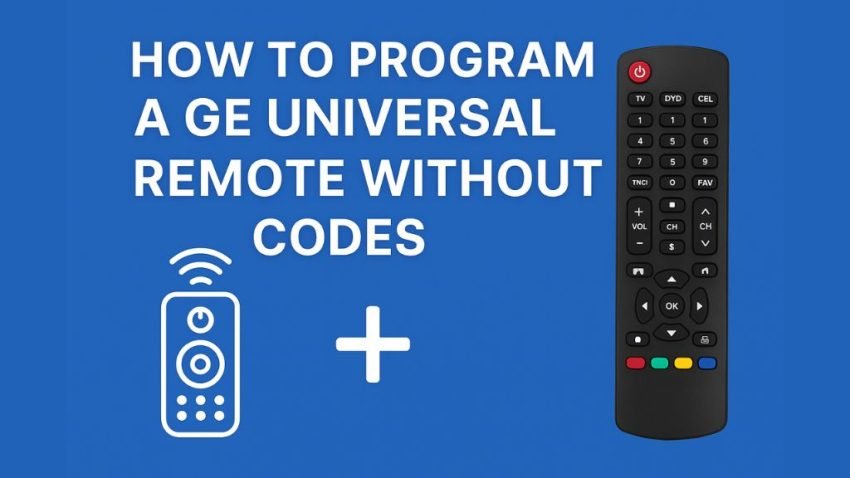
A GE Universal Remote is a convenient and affordable way to control multiple devices—your TV, DVD player, sound system, streaming box, and more. But most users face a common problem:
What do you do if you don’t have the 4-digit remote code?
Fortunately, you can program any GE Universal Remote without codes using built-in code search methods. Whether you have a newer GE remote (CL5, CL6) or an older version (CL3 or earlier), this guide explains all working methods, plus troubleshooting, reset steps, and programming with codes if needed.
Let’s get started.
Quick 30-Second Summary
If you’re in a hurry:
- Newer GE Remotes: Use Auto Code Search → hold SETUP, choose device button, press POWER repeatedly until device turns off.
- Older GE Remotes: Use 9-9-1 Number Search → hold SETUP, enter 9-9-1, hold POWER + CH+ until device turns off.
- Nothing working? Factory reset your GE remote and try again.
How GE Universal Remotes Work (Quick Explanation)
GE Universal Remotes store thousands of 4-digit codes for TVs, audio systems, and media players. When you program the remote, you’re teaching it which code works for your specific brand and model.
There are two ways to do this:
✔ Manual Code Entry
You type in the 4-digit code yourself.
✔ Code Search (No Code Needed)
The remote scans its internal code library and finds the correct one automatically.
This guide focuses on the code-free setup.
Find Your GE Remote Version (CL3, CL4, CL5, CL6)
Different GE remotes have different code libraries.
You can find your remote’s version:
Under the Battery Cover
You will see a code such as:
- CL3
- CL4
- CL5
- CL6
This doesn’t affect code-free programming, but it helps if you later decide to use manual codes.
How to Program a GE Universal Remote Without Codes (Newer Models)
If your remote is CL4, CL5, or CL6, this is the correct method.
Method 1: Auto Code Search (Works for Most TVs & Devices)
This is the easiest way to program your GE remote without a code.
Step-by-Step Instructions
- Turn ON your TV manually.
- Press and hold the SETUP button.
- Release it when the red LED light stays ON.
- Release it when the red LED light stays ON.
- Press the device button you want to program:
- TV
- DVD
- CBL
- AUX
- TV
- Now press and release the POWER button once.
The remote will start sending codes.
- Wait for 5 seconds, then press POWER again.
- Repeat pressing POWER every few seconds until the TV turns OFF.
This means the remote found a working code.
- Turn the TV back ON manually.
- Press the VOL + (Volume Up) button every 3 seconds.
- When the TV turns OFF again → the code is confirmed.
- When the TV turns OFF again → the code is confirmed.
- Press the device button (TV, DVD, etc.) again to save the code.
Test the remote
- Power
- Volume
- Menu
- Input
- Numbers
If everything works → done!
If some buttons don’t work → repeat the setup to find a better match.
Why Auto Search May Fail (and Fixes)
| Problem | Cause | Fix |
| Remote not responding | Weak batteries | Replace them |
| TV not turning off | Device not receiving the IR signal | Move closer, remove obstacles |
| Only power works | Wrong code selected | Repeat auto search |
| Auto search loops | Device type not selected | Re-select correct device button |
How to Program an Older GE Remote Without Codes (9-9-1 Number Search)
If your GE remote is older (CL3 or no CL number), use this method.
Method 2: 9-9-1 Code Search for Old GE Remotes
Step-by-Step Instructions
- Turn ON your TV manually.
- Press and hold SETUP until the LED stays ON.
- Press the TV button (or DVD/CBL/AUX).
- Enter:
9 – 9 – 1
- Press and hold the POWER + CH+ (Channel Up) buttons together.
- Keep holding until the TV switches OFF.
- Release the buttons.
- Press ENTER to lock in the code.
How it Works
This method cycles through all TV codes in the remote’s memory—often hundreds—until it finds the correct one.
This is slower than auto search but works for very old remotes.
How to Program a GE Universal Remote With Codes (If You Find Them)
Even though this article focuses on code-free programming, many readers eventually find the correct 4-digit code. Here’s how to use it.
A. Find Your Device Code
You can find your 4-digit GE code:
- Under the remote battery cover (CL version decides code list)
- On GE’s official code list website
- In your manual (if available)
- By Googling your brand + “GE remote code”
B. Manual Code Entry Steps
- Press and hold SETUP until the LED stays ON.
- Press the device button (TV, CBL, DVD, AUX).
- Enter the 4-digit code.
The LED will switch OFF.
- Test the remote:
- Power
- Volume
- Input
- Menu
- Power
If certain buttons don’t work → try the next code on the list.
GE Universal Remote Not Working? (Troubleshooting Guide)
Even after programming, your remote may not function correctly.
Here are the most common issues and solutions:
1. Remote Doesn’t Control the TV
Cause: Wrong code or incomplete auto search.
Fix: Repeat the programming.
2. Only Power Button Works
Cause: Partially compatible code.
Fix: Try searching for the next nearest code.
3. Remote LED Won’t Light Up
Cause: Dead batteries or faulty remote.
Fix: Replace batteries with a fresh pair.
4. Auto Search Never Finds a Code
Cause: Device may not support IR control.
Fix:
- Ensure your TV uses an infrared remote
- Move closer
- Remove obstacles between remote and TV sensor
5. Volume or Input Button Doesn’t Work
Cause: Wrong code family used.
Fix: Redo auto search and select a different working code.
6. Remote Controlling the Wrong Device
Cause: Multiple device memories filled.
Fix: Try resetting the remote (next section).
How to Factory Reset a GE Universal Remote
If you’ve programmed the remote multiple times or the buttons behave strangely, a reset is recommended.
Factory Reset Steps
- Press and hold SETUP until LED stays on.
- Press the MUTE button once.
- Press the 0 (zero) button.
- The LED should blink twice to confirm the reset.
If no light appears → replace batteries and try again.
Compatibility Guide (Which TVs & Devices Work?)
GE Universal Remotes work with nearly all IR-based devices.
✔ Compatible Brands
Works with 99% of major brands:
- Samsung
- LG
- Sony
- Panasonic
- Hisense
- Toshiba
- Vizio
- Sharp
- TCL
- Philips
- JVC
- Insignia
- Sanyo
- Roku TV (IR models only)
❌ NOT Compatible With:
- Bluetooth-based Fire TV Stick remotes
- Roku Streaming Stick (no IR)
- Apple TV (fully)
- Google Chromecast remotes
- Remotes requiring RF, WiFi, or Bluetooth pairing
GE remotes work only with IR devices.
FAQs (Optimized for Google Snippets)
1. How do I know if my GE Universal Remote can be programmed without codes?
All GE remotes support code-free auto programming. Even older models work with the 9-9-1 search method.
2. How long does the auto code search take?
It usually takes 1 to 5 minutes, depending on your TV brand and how quickly the remote cycles through codes.
3. My GE remote won’t enter setup mode. Why?
- Batteries are weak
- Buttons are stuck
- Remote is damaged
- Setup button may not be responding
Try replacing the batteries first.
4. How can I find the model number of my GE remote?
Remove the battery cover and look for:
- X-digit model number
- CL version (CL3, CL4, CL5, CL6)
5. Why does my TV turn off but volume button doesn’t work?
The remote found a partially compatible code.
Repeat auto search until all buttons work correctly.
6. Can I skip invalid codes faster?
Yes. Press POWER or CH+ faster (every 1–2 seconds) to speed up code cycling.
Final Words
Programming your GE Universal Remote without codes is simple—whether you have a modern CL6 model or an older CL3 remote. The auto code search and 9-9-1 methods allow you to connect to almost any TV or device without needing the 4-digit code.
If the remote reaches its maximum device limit or begins acting unpredictably, a quick factory reset usually solves the problem.
Visit teachdiary.com for more blogs.