
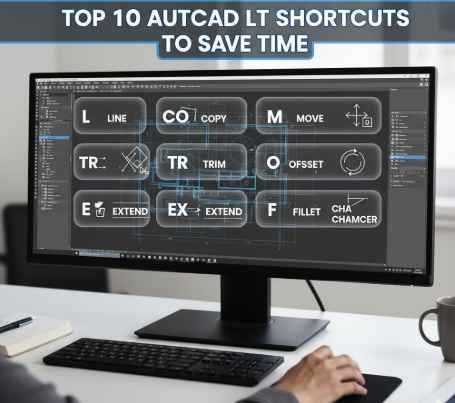
In the world of design and drafting, time is not only money, but also an engine of creativity. Every click, command, and shortcut makes your workflow smooth, or you can waste time on unnecessary menus. For drafting professionals, AutoCAD LT 2D is a go-to software, accurate, reliable, and powerful. But when you understand its smart shortcuts, then this tool becomes faster and more efficient. Whether you are creating a building blueprint, designing a product, or polishing a client concept, some shortcuts make your work simple and easy. Here we will explore some of the Top 10 AutoCAD shortcuts that help you to create smarter designs, work faster, and achieve more productivity. Along with this guide, you can also decide which license or Subscription plan is best.
- Ctrl + N – New Drawing
You can also open a new drawing at any moment as soon as you have a new idea or have to do a new project by just pressing Ctrl + N. Enough fooling around in menus, just get started!
- Ctrl + S – Save Your Work
This might not sound much, but this is the most fundamental shortcut in AutoCAD LT. Press Ctrl + S after every 4-5 minutes so as to save your work and avoid the loss of data by accident. It has an auto-saving option on complicated projects, although a manual save gives comfort.
- Ctrl + Z / Ctrl + Y – Undo & Redo
Mistakes happen. Ctrl + Z allows you to undo whatever you have just done, and just in case you want to undo, press Ctrl + Y. It is a less stressful way of experimenting!
- L – Line Command
The L shortcut is the most used command in AutoCAD LT. Type L and press Enter—drawing a line becomes super-fast.
- C – Circle Command
Use the C shortcut to draw a circle. Whatever it has in bolt holes or a round form, there is no need to dig into menus, one-second workflow!
- M – Move Command
Accurately moving objects is crucial. Type M, press Enter, select the object, specify the base point and destination point—no extra clicks.
- CO – Copy Command
Need to duplicate an element? Type CO and press Enter. The command of coping minimizes redundant labor and ensures uniformity.
- TR – Trim Command
Get tired of losing time erasing additional lines? Use TR and trim instantly. Professional and clean drawings are drawn.
- XL – Construction Line Command
XL develops endless system construction lines that are drafting guides. Another shortcut that is essential to know when it comes to complex layouts and alignment.
- Ctrl + Tab – Switch Between Open Drawings
Multiple files open? Press Ctrl + Tab and quickly switch without clicking through windows. A time saver for multitaskers!
How to Use AutoCAD Addict License and Subscription Plans
Shortcuts will increase efficiency, but it is also equally important to buy the right AutoCAD LT license. Autodesk gives flexible options that depend on your business usage and budget. In case you are a beginner, then compare different plans’ prices before you buy the software. For the short-term projects, a monthly subscription is best, and when we talk about long-term business, then an annual or multi-year plan is very cost-effective. Professional users usually buy AutoCAD LT through a reseller. If you want genuine software and IT support, then the AutoCAD provider can be the best choice for your business growth.
Conclusion
Design productivity refers to smarter rather than harder work. AutoCAD LT is already regarded as a powerful tool, but by using these best shortcuts, you can make your working process quick and correct. All shortcuts will provide you with some additional time, and you will have time to be creative and concentrate on quality. A proper license and subscription plan will bring you all the necessary tools, technically and financially. No matter if you are an architect, engineer, or designer, a streamlined workflow helps to convert your ideas into reality. If you are ready to buy AutoCAD LT, then always contact a certified reseller for genuine software and IT support. For the expert advice and best Autodesk solutions, wroffy can be the best distributor for your business.