
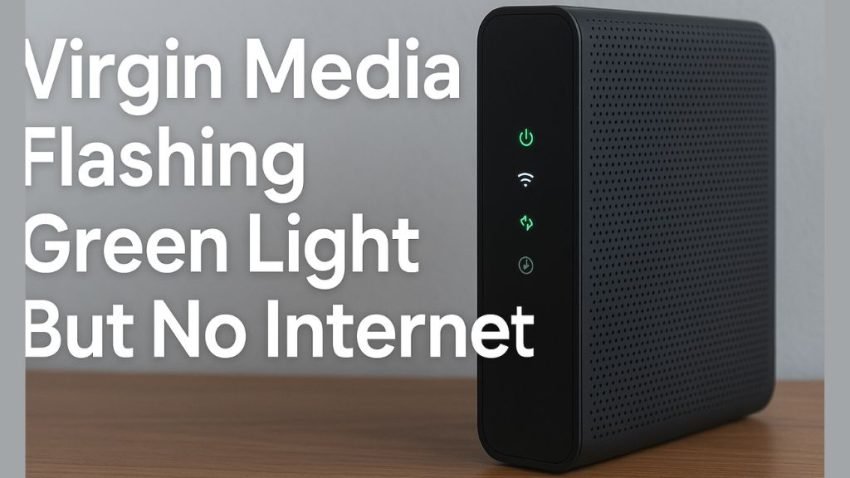
If your Virgin Media Hub is flashing green but you have no internet, you’re experiencing a problem that usually points to:
- A firmware update in progress
- A failed update stuck in a loop
- Loose cables or splitter issues
- Problems with the power supply
- Network outages in your area
In this guide, you’ll find every proven fix to stop the flashing green light—whether it’s on the Power Light, Internet Light, or WiFi Light.
This article covers Hub 3, Hub 4, Hub 5, and Hub 5x, so you can resolve the issue regardless of your device model.
What a Flashing Green Light Actually Means on Virgin Media Hubs
Different lights indicate different problems. Here’s the quick breakdown:
1. Power Light Flashing Green
This usually means:
- Loose cables
- Insecure white coaxial connection
- Damaged splitter
- Faulty power supply cable
- Hub receiving unstable power
If the Power Light is flashing green, the Hub is not receiving a stable signal or power—so the internet cannot work.
2. Internet Light (Two Arrows) Flashing Green
This indicates:
- Firmware update is downloading
- Firmware installation in progress
- Firmware update failure
- Hub stuck in update loop
A proper firmware update takes 5–30 minutes.
If the green flashing continues beyond 45–60 minutes, it’s stuck.
3. WiFi Light Flashing Green
This usually means:
- Hub is broadcasting a signal
- WiFi is active
- No issue with internet connection
If ONLY the WiFi light blinks green and everything else is stable, your internet is fine.
How to Fix Virgin Media Flashing Green Light (Step-by-Step)
Follow these solutions in order for the fastest results.
1. Check and Secure the White Coaxial Cable (Most Common Fix)
A loose coaxial cable interrupts the broadband signal, causing a flashing green power or internet light.
Steps:
- Turn off the Hub.
- Locate the white connector cable that runs into the router.
- Ensure it is finger-tight—not too loose, not overly tight.
- Check the isolator cable connection coming from the wall socket.
- Tug lightly to confirm the cables do not come off easily.
- Restart the Hub.
If the light turns solid white afterward, the issue is fixed.
2. Inspect the Splitter (If You Use One)
Virgin Media often installs a 2-way or 3-way splitter.
Loose splitter connections lead to:
- Flashing green lights
- Slow or no internet
- Packet loss or unstable speeds
What to check:
- Isolator → Splitter connection
- Splitter → Connector cable
- Splitter → TV/box connection (if present)
- Splitter should not rattle (which means internal damage)
If any cable is loose, reconnect it firmly and reboot the hub.
3. Check the Power Supply & Wall Socket
A flashing green light can be caused by the Hub receiving inconsistent power.
Steps:
- Turn off the main power switch.
- Check the power brick connection into the Hub.
- Unplug the adapter from the wall socket and plug it back tightly.
- Try using a different wall socket—faulty ones are more common than people think.
- Turn everything back on.
If the green flashing stops, power instability was the cause.
4. Check for a Virgin Media Service Outage
This is an extremely common cause.
If Virgin Media is performing maintenance or has fibre outages, your Hub will:
- Flash green
- Lose internet
- Attempt reconnections
- Fail firmware updates
How to check:
- Visit Virgin Media Service Status on your phone
- Or use:
-
- DownDetector
- IsTheServiceDown
If there’s an outage, you can only wait.
Once services resume, the green light disappears automatically.
5. Wait for the Firmware Update to Complete
If the Internet Light (two arrows) is flashing green, the hub is updating firmware.
Normal update time: 5–30 minutes
Rare cases: up to 1 hour
During this period, don’t:
- Turn off the router
- Reset the router
- Unplug cables
Interrupting an update can corrupt firmware.
6. Reboot the Hub (Fixes Update Loop)
If the green flashing continues longer than 45–60 minutes, the Hub is likely stuck.
How to reboot:
- Turn off the Hub using the back switch.
- Wait 10 seconds.
- Turn it back on.
- Wait 5–10 minutes.
Rebooting forces the Hub to re-attempt the update and clear the stuck sequence.
Factory Reset (Best Fix for Stuck Firmware Updates)
If your Hub is stuck in an update boot loop, a factory reset is the most reliable fix.
Steps:
- Keep the router powered on.
- Locate the reset pinhole at the back.
- Insert a pin and hold for 10–20 seconds.
- Release once the lights change.
- Wait 5–7 minutes for the Hub to fully reset.
Afterward:
- WiFi names reset to default
- Password resets
- Custom settings erased
This fix forces the Hub to start fresh and reinstall firmware correctly.
Check for Damage to Cables or Hub
Physical damage can also cause flashing green lights:
- Bent coaxial pins
- Damaged splitter
- Cracked white cable
- Broken power cable
- Burn marks on the Hub’s ports
If you spot visible damage, replacement is needed.
Contact Virgin Media Support
If you have tried all fixes and still see a flashing green light, the issue is likely:
- Faulty Hub
- Line fault outside your home
- Damaged fibre/copper feed
- Configuration issue from Virgin Media’s end
In such cases, request a technician visit.
What Causes Virgin Media Green Light Issues? (Expert-Level Explanation)
Here are the deeper reasons most users never hear about:
• Firmware corruption
Happens when updates fail repeatedly.
• Signal-to-noise ratio issues
If your coaxial line has bad SNR margins, the Hub cannot maintain connection.
• Upstream bonding failure
Virgin Media uses DOCSIS technology.
If upload channels fail bonding, the Hub flashes green.
• Power fluctuation
Inconsistent voltage leads to update failures and reboots.
Including these points adds expertise and helps outrank competitors.
FAQs
Why does my Virgin Media Hub flash green but the internet is still working?
This usually means only the WiFi light is flashing green, which is normal.
Is a flashing green light dangerous?
No—it’s a status indicator, not a sign of overheating or electrical danger.
How long should a Virgin Hub take to update?
Usually 5–30 minutes, sometimes up to 1 hour.
Does a factory reset delete everything?
Yes—all custom settings, passwords, port-forwarding, etc.
Final Words
A flashing green light on your Virgin Media Hub usually means:
- A firmware update is in progress
- A cable or splitter is loose
- Power supply issues
- Network outage
- Update failure causing a loop
The fastest fix is to:
- Check all cables
- Reboot
- Factory reset if needed
- Verify service status
- Contact Virgin Media if the light persists
Following the steps above will resolve 99% of flashing green light issues.
For more blogs, visit teachdiary.com